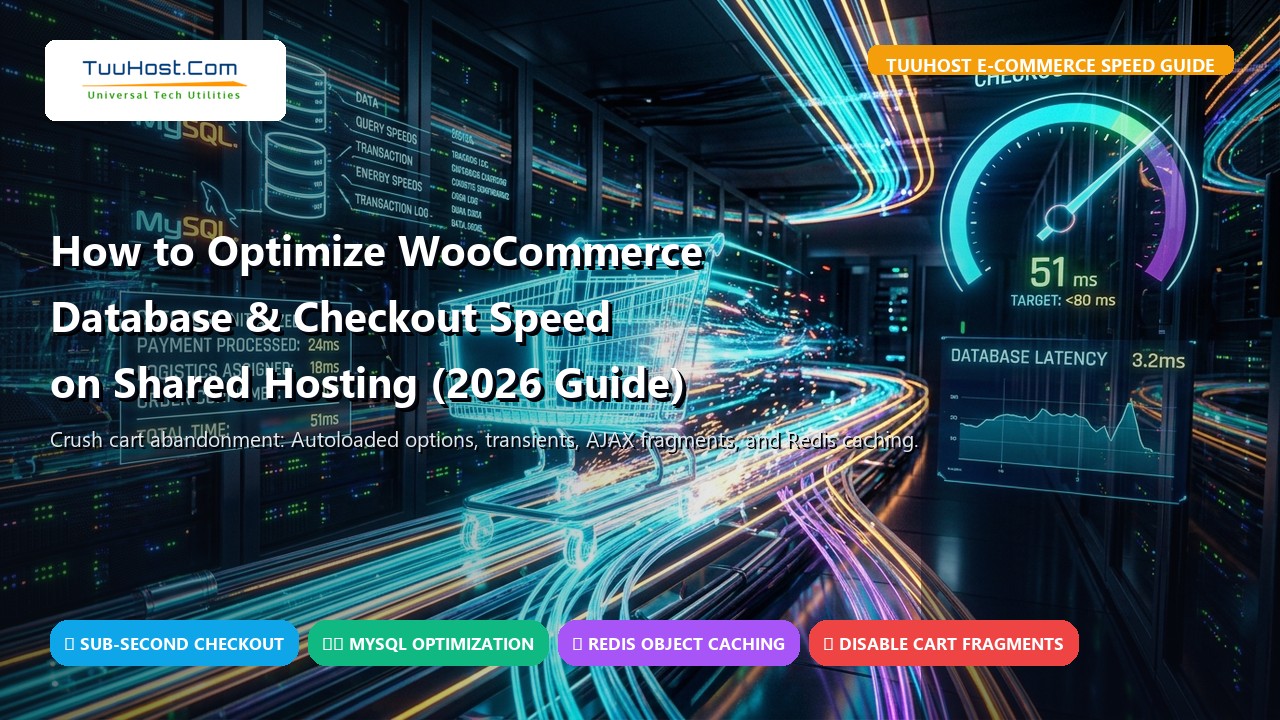
There is no point of failure more expensive in digital commerce than a sluggish checkout page. You can spend thousands of dollars on pay-per-click advertising, craft beautiful high-converting product pages, and build an enthusiastic social audience—but if your customer clicks “Proceed to Checkout” and waits four to seven seconds for the payment gateways to render, they will abandon their cart without hesitation.
According to retail performance studies by Portent and Cloudflare, an e-commerce website that loads in 1 second converts at triple the rate of a site that takes 5 seconds to load. Furthermore, over 67% of online shoppers cite slow checkout load times as their primary reason for abandoning a transaction.
Many store owners assume the only solution to a slow WooCommerce checkout is to spend \$100+ per month on dedicated cloud servers. While high-traffic enterprise stores certainly require scalable infrastructure, a properly tuned WooCommerce store can easily achieve sub-second checkout speeds on shared hosting.
The secret lies in understanding how dynamic database queries interact with server resource limits. In this technical 2026 guide, we demonstrate how to diagnose and clean bloated wp_options tables, eliminate the notorious wc-ajax=get_refreshed_fragments performance sink, leverage Redis object caching, migrate to High-Performance Order Storage (HPOS), and squeeze maximum e-commerce throughput out of your shared hosting plan.
📋 Table of Contents
- 1. The Dynamic Problem: Why Static Caching Fails on Checkout
- 2. Understanding Shared Hosting Constraints (PHP Workers & I/O)
- 3. Step 1: Auditing & Shrinking Bloated wp_options Autoload Data
- 4. Step 2: Purging Transients & Migrating to HPOS
- 5. Step 3: Taming the wc-ajax=get_refreshed_fragments Performance Sink
- 6. Step 4: Activating Redis Object Caching & LSCache ESI
- 7. Step 5: cPanel MultiPHP Environment & OPcache Tuning
- 8. Step 6: Frontend Script Deferral & Checkout Field Optimization
- 9. Frequently Asked Questions (FAQ)
- 10. Summary & TuuHost High-Performance E-Commerce Hosting
1. The Dynamic Problem: Why Static Caching Fails on Checkout
To fix slow checkout speeds, you must understand why standard caching plugins (like WP Super Cache or basic CDN page caching) cannot accelerate checkout pages.
When a visitor views a blog post or static homepage, the web server generates the page once, saves the resulting HTML into static disk storage, and serves that pre-rendered file to subsequent visitors in under 100ms. Neither PHP execution nor MySQL queries are required.
However, the Cart (/cart/), Checkout (/checkout/), and My Account pages are strictly dynamic and personalized:
- Every shopper has a unique cookie session containing different cart items, discount coupon codes, and shipping addresses.
- Tax calculations, live courier shipping APIs, inventory reservation tables, and payment gateway tokens must be computed in real-time.
- If checkout pages were cached, Customer A would see Customer B’s personal address and credit card tokens—a catastrophic security and privacy disaster.
Therefore, every single click on your checkout page forces your server to spin up fresh PHP worker processes, compile WordPress core files, execute dozens of database queries, and write session tokens. On un-optimized shared hosting, this uncached dynamic workload instantly grinds the server to a halt.
2. Understanding Shared Hosting Constraints (PHP Workers & I/O)
On high-performance shared hosting platforms like TuuHost, servers use CloudLinux OS with LVE (Lightweight Virtual Environment) to ensure stability. While this guarantees that noisy neighbors cannot crash your site, it also means your account operates within defined physical parameters:
| LVE Metric | Typical Shared Cap | Impact on WooCommerce Checkout |
|---|---|---|
| Entry Processes (EP) | 20 – 30 concurrent threads | If 25 customers checkout or add items simultaneously, request #26 triggers a 508 Resource Limit Reached error. |
| Physical Memory (PMEM) | 1 GB – 2 GB RAM | Heavy checkout scripts or bulky plugins spike memory, causing silent fatal PHP out-of-memory errors. |
| Disk I/O Throughput | 10 – 25 MB/s | Unindexed database searches read raw files from disk, queueing up queries and delaying page rendering. |
The takeaway is crystal clear: to achieve lightning-fast checkout on shared hosting, you must drastically reduce the amount of work PHP and MySQL must perform per request.
3. Step 1: Auditing & Shrinking Bloated wp_options Autoload Data
The wp_options table is the central configuration registry of your WordPress site. Crucially, any row where autoload = 'yes' is loaded into memory on EVERY SINGLE PAGEVIEW, whether it’s the homepage, an API call, or the checkout screen.
On a healthy WordPress install, total autoloaded data should hover between 300 KB and 800 KB. In many struggling WooCommerce stores, abandoned plugins, uncleaned analytics trackers, and theme option frameworks inflate this to 5 MB to 20 MB.
If your autoloaded data is 10 MB, every single pageview requires MySQL to query, transfer, and de-serialize 10 MB of text into PHP memory before executing a single line of theme code. Under 20 concurrent visitors, your server must shuffle 200 MB of data per second just to load options!
How to Check Your Autoload Size via phpMyAdmin
Log into your cPanel, open phpMyAdmin, select your database, and run this SQL query under the SQL tab:
FROM wp_options
WHERE autoload = ‘yes’;
If the result exceeds 1,000 KB (1 MB), you have found a massive bottleneck. Now, run this query to identify the top 10 worst offending plugins and rows:
FROM wp_options
WHERE autoload = ‘yes’
ORDER BY size_kb DESC
LIMIT 10;
Look for rows belonging to deactivated plugins, rogue page builders, or old marketing integrations. If you find options from removed plugins, delete them or update their status to autoload = 'no' so they are only queried when explicitly called.
4. Step 2: Purging Transients & Migrating to HPOS
1. Purging Orphaned Transients
Transients are temporary cached values (such as live shipping rates or API responses). By design, they should automatically expire and self-delete. However, when server cron jobs fail or plugins misbehave, hundreds of thousands of expired transients linger in wp_options, inflating database query response times.
Inside WordPress, navigate to WooCommerce > Status > Tools. Scroll down and click:
- Clear WooCommerce Transients
- Clear Expired Transients
- Clear Customer Sessions (Warning: This logs out active shoppers, so perform this during low-traffic midnight hours).
2. Migrate to High-Performance Order Storage (HPOS)
Historically, WooCommerce stored all orders inside the traditional WordPress wp_posts and wp_postmeta tables. For every single order placed, WooCommerce had to insert dozens of rows into wp_postmeta. On stores with thousands of orders, the postmeta table swells to millions of rows, causing checkout queries to take 3+ seconds.
WooCommerce’s High-Performance Order Storage (HPOS) introduces dedicated, indexed e-commerce tables (such as wp_wc_orders, wp_wc_order_addresses, and wp_wc_order_operational_data).
HPOS separates store orders from standard WordPress blog posts. Order creation and retrieval speeds improve by up to 500%, and database concurrency locks during checkout are completely eradicated. To enable HPOS, navigate to WooCommerce > Settings > Advanced > Features, and check “High-performance order storage (COT)”.
5. Step 3: Taming the wc-ajax=get_refreshed_fragments Performance Sink
If you open Chrome Developer Tools (Network tab) on any standard WooCommerce site, you will notice an AJAX POST request firing constantly:
Why Cart Fragments Devastate Shared Hosting Performance
The sole purpose of cart-fragments.js is to update the mini-cart widget in your website header without refreshing the entire page. However, by default, WooCommerce executes this script on every single pageview across your entire site—including non-e-commerce pages like your homepage, about page, and blog posts!
Because this is an uncached dynamic AJAX request, viewing a single static blog article actually consumes two server requests: the static pageview plus an uncached PHP database hit for the cart fragment. Under traffic, this drains your shared hosting Entry Process (EP) pool instantly.
How to Disable Cart Fragments on Non-Shop Pages
Add the following clean snippet to your child theme’s functions.php or via a snippet manager like Code Snippets:
* Disable WooCommerce Cart Fragments on Non-Shop Pages
*/
add_action( ‘wp_enqueue_scripts’, function() {
if ( function_exists( ‘is_woocommerce’ ) ) {
if ( ! is_woocommerce() && ! is_cart() && ! is_checkout() && ! is_product() ) {
wp_dequeue_script( ‘wc-cart-fragments’ );
}
}
}, 99 );
This ensures cart fragments only trigger when visitors are actively interacting with shop pages, cutting server load across the rest of your site by 50%!
6. Step 4: Activating Redis Object Caching & LSCache ESI
While full-page caching is forbidden on checkout, Object Caching is an absolute game-changer.
Every time a customer updates their shipping address or applies a coupon during checkout, WooCommerce executes multiple database queries to fetch shipping zones, tax brackets, and customer meta. An in-memory Object Cache (like Redis or Memcached) stores the results of these repetitive database queries directly in RAM.
| Operation Type | Without Object Cache | With Redis Object Cache |
|---|---|---|
| Database Query Count on Checkout | 85 – 140 MySQL queries | 12 – 22 MySQL queries (80% drop) |
| Dynamic PHP Execution Time | 1,800 ms – 3,200 ms | 220 ms – 450 ms |
| MySQL Disk Read/Write Strain | High I/O usage | Near-zero (served directly from RAM) |
How to Enable Redis on TuuHost
- Log into your TuuHost cPanel and navigate to Select PHP Version > Extensions.
- Ensure the redis PHP extension checkbox is enabled.
- Inside WordPress, open LiteSpeed Cache > Cache > Object.
- Set Object Cache to ON, Method: Redis, Host:
127.0.0.1, Port:6379. - Click Save Changes. Look for the green confirmation indicator: “Connection Test: Passed”.
Edge Side Includes (ESI) in LiteSpeed Cache
LiteSpeed Web Server natively supports ESI (Edge Side Includes). ESI allows LiteSpeed to cache 98% of your page as static HTML while “punching a dynamic hole” specifically for the cart total and user login greeting. When a shopper visits a product page, LiteSpeed serves the static cached page instantly while assembling the dynamic cart fragment at the server edge—delivering a blazing sub-200ms page load without stale cart data!
7. Step 5: cPanel MultiPHP Environment & OPcache Tuning
Your hosting server configuration must provide sufficient execution headroom for WooCommerce’s intensive computation. Open MultiPHP INI Editor in cPanel and configure these recommended production values:
memory_limit = 512M
max_execution_time = 300
max_input_vars = 5000
post_max_size = 64M
upload_max_filesize = 64M
; OPcache Configuration
opcache.enable = 1
opcache.memory_consumption = 256
opcache.interned_strings_buffer = 16
opcache.max_accelerated_files = 20000
opcache.validate_timestamps = 1
Upgrading to PHP 8.2 or PHP 8.3 inside cPanel delivers an immediate 15% to 25% speed increase over older PHP 7.4 or 8.0 environments due to advanced Just-In-Time (JIT) compilation optimizations.
8. Step 6: Frontend Script Deferral & Checkout Field Optimization
Finally, audit what runs directly in the buyer’s browser during checkout:
1. Unload Non-Essential Scripts on /checkout/
Why should your checkout page load slider scripts, mega-menu JavaScript, Contact Form 7 assets, and review plugins? Use a tool like Asset CleanUp or Perfmatters to disable every script and stylesheet that is not strictly required for placing an order on /checkout/.
2. Defer Tracking Pixels
Marketing scripts (Google Tag Manager, Meta Pixel, TikTok Pixel, Hotjar session recordings) block the main JavaScript thread. Configure your tag manager to fire tracking events asynchronously or defer them until after the initial DOM content has rendered.
3. Eliminate Superfluous Checkout Fields
Remove unnecessary input fields like “Company Name”, “Address Line 2”, and “Order Notes” unless strictly needed for fulfillment. Fewer form fields reduce client-side validation scripts and boost checkout completion rates by up to 20%.
9. Frequently Asked Questions (FAQ)
Can a busy WooCommerce store truly run fast on shared hosting?
Yes, provided the shared hosting uses modern LiteSpeed Enterprise NVMe infrastructure (like TuuHost) and the database is kept lean. With Redis object caching and autoloaded options under 800 KB, a shared hosting plan can comfortably process hundreds of orders per day with sub-second checkout speeds.
Will purging transients delete my customer orders or products?
No. Transients are strictly temporary cache records (such as cached product counts, currency exchange rates, or shipping calculations). Your real customer orders, products, and user accounts are permanently stored in orders and posts tables and are completely untouched by transient purges.
How do I know if my store has outgrown shared hosting?
If you have implemented all database optimizations, enabled Redis, and trimmed autoloaded options, but your cPanel CPU or Entry Process graphs still continuously hit 100% during sales spikes, it is time to upgrade to a Managed Cloud VPS for dedicated vCPU cores and guaranteed RAM.
Why does TuuHost perform better for WooCommerce than generic shared hosts?
Unlike commodity hosts that run outdated Apache web servers with mechanical hard drives, TuuHost powers every account with enterprise LiteSpeed Web Server, blazing PCIe Gen4 NVMe enterprise storage arrays, native Redis object caching, and generous CloudLinux PHP worker limits designed specifically for e-commerce stores.
10. Summary & TuuHost High-Performance E-Commerce Hosting
Optimizing your WooCommerce store is not about spending more money on bloated hosting plans—it is about removing structural bottlenecks. By keeping your wp_options table under 800 KB, migrating to HPOS, disabling cart fragments, and enabling Redis object caching, you transform a sluggish checkout into an effortless, revenue-generating engine.
Turbocharge Your WooCommerce Store with TuuHost NVMe Hosting
Experience ultra-fast WooCommerce checkout with LiteSpeed Web Server, enterprise NVMe storage, native Redis object caching, and automated daily backups. Let our senior migration specialists transfer your store for free with zero downtime!