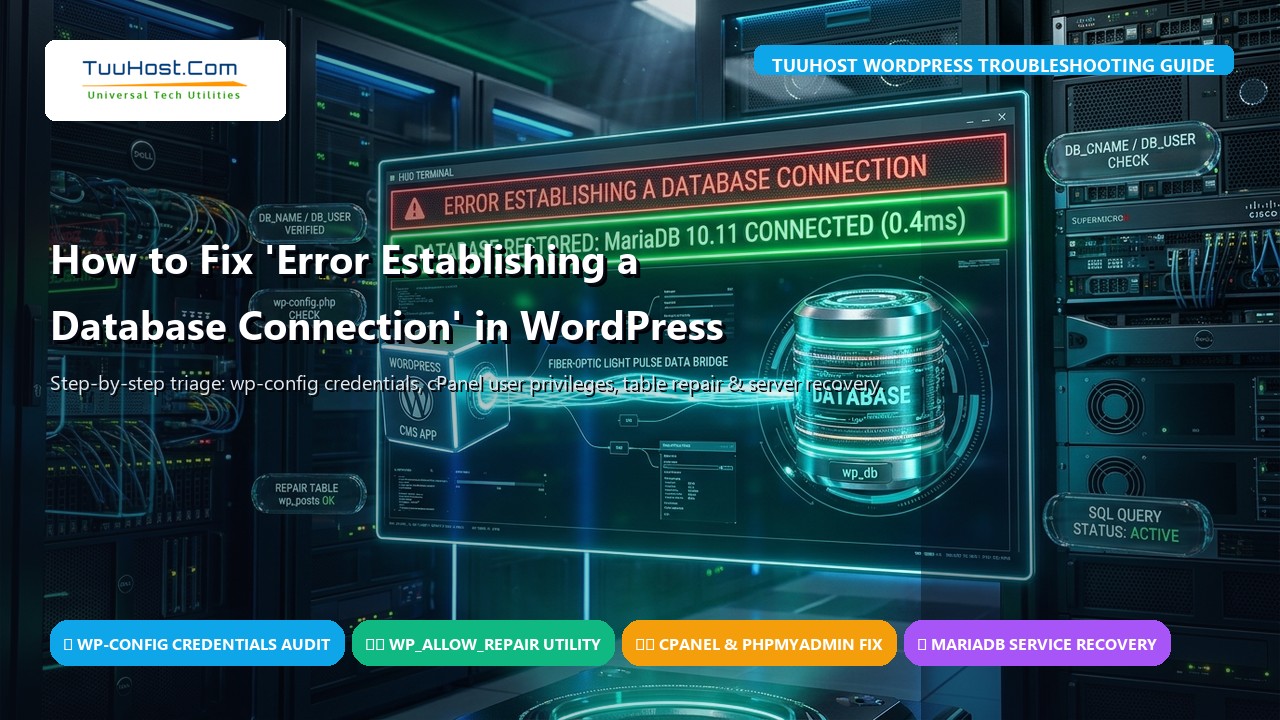
There is no single error in the entire WordPress ecosystem that strikes fear into website owners, developers, and e-commerce entrepreneurs quite like the stark, minimalist white screen bearing six chilling words: “Error establishing a database connection”. In an instant, your live storefront, client portals, and organic search traffic vanish into thin air. Worse yet, because WordPress cannot connect to its relational data store, your administrative dashboard at /wp-admin/ is completely inaccessible, locking you out of your own platform.
While this critical failure feels catastrophic, it is actually one of the most logically structured issues in web hosting. WordPress is not a static flat-file website; it is a dynamic application powered by PHP and backed by an RDBMS—typically MySQL or MariaDB. Every page load requires PHP to establish an authenticated TCP socket connection to retrieve your active theme, installed plugins, post content, and user credentials. When that handshake breaks down, WordPress immediately terminates execution to prevent data corruption. In this comprehensive, battle-tested 2026 tutorial, TuuHost provides an emergency step-by-step recovery playbook to diagnose the root cause, repair corrupted tables, audit authentication credentials, and get your WordPress website restored in under fifteen minutes.
📋 Table of Contents: Emergency Database Connection Troubleshooting
- 1. The 60-Second Emergency Triage: Front-End vs. Back-End Diagnosis
- 2. The 5 Root Causes: Why WordPress Loses Connection to MySQL
- 3. Step 1: Auditing & Correcting wp-config.php Database Credentials
- 4. Step 2: Synchronizing Database Users & Privileges in cPanel
- 5. Step 3: Repairing Corrupted WordPress Database Tables (WP_ALLOW_REPAIR)
- 6. Step 4: Investigating Crashed MySQL/MariaDB Services & Linux OOM Killer
- 7. Step 5: Resolving Disk Space Saturation, Inode Exhaustion & Unix Sockets
- 8. Step 6: Fixing Corrupted SiteURL & Home Values in wp_options
- 9. Diagnostic Symptom vs. Root Cause Resolution Matrix
- 10. Prevention Architecture: Hardening Your Database Against Future Downtime
- 11. Frequently Asked Questions (FAQ)
- 12. Summary: Restoring Peace of Mind with TuuHost Managed Hosting
1. The 60-Second Emergency Triage: Front-End vs. Back-End Diagnosis
Before randomly modifying configuration files or restarting server services, you must perform a rapid 60-second diagnostic triage. Open two separate browser tabs:
- Tab 1: Visit your public website front-end (e.g.
https://yourdomain.com/). - Tab 2: Visit your WordPress administrative login panel (e.g.
https://yourdomain.com/wp-admin/).
Observe the exact error displayed on both screens. This single check immediately isolates 80% of potential causes:
- Scenario A (Identical Error on Both): Both your homepage and
/wp-admin/display the exact same text: “Error establishing a database connection”. This indicates a credential mismatch, user privilege de-synchronization, or an entirely offline MySQL daemon. Proceed directly to Step 1 and Step 2. - Scenario B (Asymmetric Error): Your homepage displays “Error establishing a database connection”, but
/wp-admin/displays: “One or more database tables are unavailable. The database may need to be repaired.” This confirms your credentials are valid, but one or more core tables (typicallywp_postsorwp_options) have suffered table-level data corruption. Proceed directly to Step 3 (Table Repair).
🚨 Critical Safety Warning: Take a Snapshot Before Modifying Anything
Before editing wp-config.php or triggering table repairs, log into your hosting control panel (cPanel, Plesk, or SSH) and create an immediate manual backup of your existing database file via phpMyAdmin Export or cPanel Backup. Modifying database tables during an active corruption state without a fallback snapshot risks permanent data loss.
2. The 5 Root Causes: Why WordPress Loses Connection to MySQL
To resolve the failure permanently, we must examine the five distinct architectural breakdowns that trigger this state:
- 1. Inaccurate Credentials in
wp-config.php: The database name, database username, password, or host hostname defined in your configuration file does not match what MySQL expects. This frequently occurs after migrating to a new host, cloning a staging environment, or changing passwords in cPanel without updating WordPress. - 2. Database User Privilege Desynchronization: The database user exists, but it has not been mapped to the target database, or it lacks essential privileges (such as
SELECT,INSERT,UPDATE,DELETE,CREATE, andALTER). - 3. Corrupted Database Tables: An unexpected server reboot, an out-of-disk-space error during an active write transaction, or an aborted plugin update corrupted an InnoDB or MyISAM table index.
- 4. MySQL/MariaDB Service Crashed (Out of Memory): Sudden traffic surges or unindexed queries exhaust server RAM. The Linux kernel’s Out-Of-Memory (OOM) Killer forcefully terminates the
mysqlddaemon to protect operating system integrity. - 5. Storage Quota or Inode Saturation: Your hosting account or server partition has reached 100% capacity. When MySQL cannot write temporary files or lock files to
/tmpor/var/lib/mysql, it refuses all subsequent incoming connections.
3. Step 1: Auditing & Correcting wp-config.php Database Credentials
The most common cause of database connection failures is invalid authentication parameters inside your WordPress configuration file. Connect to your server using cPanel File Manager, an FTP client (such as FileZilla), or via SSH terminal. Navigate to your website’s document root (typically /public_html/) and locate wp-config.php.
Inspect the Core Database Constants
Open wp-config.php in a text editor and locate the following four lines:
// ** Database settings - You can get this info from your web host ** //
/** The name of the database for WordPress */
define( 'DB_NAME', 'tuuhost_wpdb' );

/** Database username */
define( 'DB_USER', 'tuuhost_wpuser' );

/** Database password */
define( 'DB_PASSWORD', 'YourSuperSecretPassword#123' );

/** Database hostname */
define( 'DB_HOST', 'localhost' );
Pay special attention to the following common traps:
- cPanel Prefix Requirements: In shared hosting environments (including cPanel), database names and usernames almost always require your cPanel username as a prefix (e.g.
cpaneluser_wpdbandcpaneluser_wpuser). If yourwp-config.phpsimply listswpdb, authentication will instantly fail. - Accidental Whitespace or Quote Corruption: Ensure there are no accidental spaces inside the quotes (e.g.
' tuuhost_wpdb') and that standard single quotes (') are used rather than stylized curly quotes (’). - Database Host Discrepancies: While
localhostis standard for 95% of web hosts (including TuuHost), some hosts require a local loopback IP (127.0.0.1) or a custom internal hostname or port (e.g.mysql.yourdomain.comor127.0.0.1:3306).
The Standalone PHP Connection Test Script
To verify whether the failure lies within MySQL itself or within WordPress core, create a temporary testing file named test-db.php in your /public_html/ directory with the following code:
<?php
// test-db.php - TuuHost Database Diagnostic Script
$db_host = 'localhost';
$db_user = 'tuuhost_wpuser';
$db_pass = 'YourSuperSecretPassword#123';
$db_name = 'tuuhost_wpdb';

$link = mysqli_connect($db_host, $db_user, $db_pass, $db_name);

if (!$link) {
    die('<h3 style="color:red">Connection Failed:</h3> ' . mysqli_connect_error());
}

echo '<h3 style="color:green">Success!</h3> Connected to MySQL Server version: ' . mysqli_get_server_info($link);
mysqli_close($link);
?>
Visit https://yourdomain.com/test-db.php in your browser:
- If it outputs “Access denied for user”: Your
DB_USERorDB_PASSWORDis 100% incorrect. Proceed to Step 2 to reset them. - If it outputs “Unknown database”: Your
DB_NAMEdoes not exist on the server. - If it outputs “Can’t connect to local MySQL server through socket”: The database service is down or socket path is misconfigured. Proceed to Step 4.
- If it outputs “Success!”: Your database server and credentials are completely healthy, meaning WordPress has corrupted tables or a plugin filter blocking the connection. (Remember to delete
test-db.phpimmediately after testing for security reasons!)
4. Step 2: Synchronizing Database Users & Privileges in cPanel
If your test script returned an “Access denied” error, the database user either has the wrong password or has not been granted proper permissions to the database. Follow these steps in cPanel:
- Log into your cPanel Dashboard.
- Under the Databases section, click on MySQL Databases.
- Scroll down to the Current Databases table. Verify that your target database name matches the
DB_NAMEin yourwp-config.phpfile. - Check the Privileged Users column for that database. If no user is listed, or if the user listed does not match your
DB_USER, scroll down to Add User To Database. - Select your user and database from the dropdown menus and click Add.
- In the privileges screen, check the ALL PRIVILEGES box and click Make Changes.
- To eliminate any password ambiguity, scroll down to Current Users, find your user, click Change Password, generate a clean alphanumeric password without special symbols that could cause syntax escaping issues, and click Change Password.
- Update
DB_PASSWORDinsidewp-config.phpwith your new password and save the file.
5. Step 3: Repairing Corrupted WordPress Database Tables (WP_ALLOW_REPAIR)
If you received the error “One or more database tables are unavailable” when visiting /wp-admin/, your database credentials are fine, but tables have suffered index corruption. WordPress features a built-in, native emergency repair utility that can be unlocked with a single configuration line.
Activating the Native WordPress Database Repair Tool
Open wp-config.php and add the following line immediately above the line that reads /* That's all, stop editing! Happy publishing. */:
/** Emergency WordPress Database Repair Tool */
define( 'WP_ALLOW_REPAIR', true );
Save the file. You do not need to be logged into WordPress to use this utility. Open your web browser and navigate to:
https://yourdomain.com/wp-admin/maint/repair.phpYou will be presented with two options:
- Repair Database: Rapidly scans all core WordPress tables (e.g.
wp_posts,wp_comments,wp_options) and repairs damaged B-Tree indexes. - Repair and Optimize Database: Performs the repair and subsequently rebuilds fragmented indexes to reclaim unused storage blocks (recommended for high-traffic sites).
🔒 Mandatory Security Action: Remove WP_ALLOW_REPAIR After Completion
Because repair.php does not require user authentication, anyone on the internet who discovers this URL can trigger heavy database locks on your server. As soon as the repair script displays “Repairs complete”, return to wp-config.php and delete the define('WP_ALLOW_REPAIR', true); line immediately!
Alternative: Repairing Tables via phpMyAdmin
If you prefer a graphical database interface:
- Log into cPanel and click on phpMyAdmin.
- Select your WordPress database from the left-hand navigation tree.
- Scroll to the bottom of the table list and click Check all.
- In the With selected: dropdown menu, choose Repair table.
- phpMyAdmin will execute
REPAIR TABLEacross all tables and display an execution report confirming statusOK.
6. Step 4: Investigating Crashed MySQL/MariaDB Services & Linux OOM Killer
If you have root access to a Virtual Private Server (VPS) or dedicated server and your test script failed with “Can’t connect to MySQL server”, the database daemon itself has stopped running.
Check Database Service Status via SSH
Connect to your server via SSH and inspect the daemon status:
# For MariaDB (Standard on modern cPanel and Ubuntu/AlmaLinux stacks)
sudo systemctl status mariadb

# For MySQL Community Server
sudo systemctl status mysql
If the status reports Active: failed (Result: exit-code) or inactive (dead), attempt to restart the daemon:
# Restart the database daemon
sudo systemctl restart mariadb || sudo systemctl restart mysql
Did the Linux OOM Killer Strike?
If MySQL restarted successfully, you must answer an urgent question: why did it crash in the first place? In over 80% of unmanaged VPS crashes, the culprit is the Linux kernel’s Out-Of-Memory (OOM) Killer. When physical RAM is exhausted by memory leaks or unoptimized queries, the kernel terminates the highest memory consumer—which is almost always MySQL.
Execute the following diagnostic command to search the kernel ring buffer:
# Inspect kernel logs for OOM killer executions targeting mysqld
dmesg -T | grep -i -E "oom|out of memory|killed process.*mysql"
If you see entries like Out of memory: Killed process 14209 (mysqld), your server requires immediate memory tuning: reducing innodb_buffer_pool_size in /etc/my.cnf, configuring a swap partition (at least 2GB), or upgrading your server plan to accommodate your traffic.
7. Step 5: Resolving Disk Space Saturation, Inode Exhaustion & Unix Sockets
Another silent killer of database connectivity is physical storage exhaustion. When a disk partition hits 100% capacity, MySQL cannot create lock files or temporary tables, leading to immediate connection refusal.
Audit Disk Space and Inodes
Run these two commands in your terminal:
# Check disk space utilization by partition
df -h

# Check file system inode utilization (file count capacity)
df -i
If your primary root partition (/) or database mount (/var/lib/mysql) displays 100% Use%, MySQL has frozen. Common culprits include:
- Massive un-rotated MySQL binary logs (
mysql-bin.000001) filling/var/lib/mysql/. - Gigabytes of runaway error logs in
/var/log/or WordPressdebug.login/wp-content/. - Runaway staging backups or un-purged trash directories.
8. Step 6: Fixing Corrupted SiteURL & Home Values in wp_options
In rare instances, database connection errors can be triggered by URL desynchronization following an SSL certificate installation, domain change, or database migration. If WordPress cannot resolve its siteurl and home records from the wp_options table, it can enter an infinite redirect loop that exhausts database connection limits.
Hardcode URLs in wp-config.php (Emergency Bypass)
You can instantly override any corrupted URL values stored in the database by hardcoding your site address directly into wp-config.php:
/** Hardcode site URLs to bypass database option lookups */
define( 'WP_HOME', 'https://yourdomain.com' );
define( 'WP_SITEURL', 'https://yourdomain.com' );
This forces WordPress to use the correct domain parameters immediately, without waiting for database queries to resolve.
9. Diagnostic Symptom vs. Root Cause Resolution Matrix
Use this rapid-reference matrix to identify your exact failure pattern and execute the corrective action:
| Observed Error Symptom | Root Cause | Primary Location | Corrective Action |
|---|---|---|---|
| “Error establishing a database connection” (Front & Back) | Incorrect DB User or Password | wp-config.php / cPanel |
Reset password in cPanel MySQL & update config |
| “One or more database tables are unavailable” | Corrupted Table Indexes | MySQL / InnoDB Storage | Add WP_ALLOW_REPAIR & run repair.php |
| “Access denied for user ‘user’@’localhost'” | Missing User Privileges | cPanel MySQL Databases | Map user to database with ALL PRIVILEGES |
| “Can’t connect to local MySQL server through socket” | Daemon Crashed / OOM Killer | Linux Kernel / Systemd | systemctl restart mariadb & audit memory |
| Intermittent connection errors during traffic surges | Max Connections Saturated | /etc/my.cnf |
Increase max_connections & enable Redis caching |
10. Prevention Architecture: Hardening Your Database Against Future Downtime
Fixing an active outage gets your business back online, but implementing robust preventative architecture ensures you never face this crisis again:
- 1. Offload Queries with In-Memory Object Caching: Configure Redis or Memcached alongside LiteSpeed Web Server. By caching transient options and query results directly in RAM, over 70% of repetitive SQL queries never touch MySQL storage, virtually eliminating connection pool exhaustion.
- 2. Implement Automated Daily Offsite Backups: Ensure your hosting environment takes automated daily snapshots stored outside your primary server (e.g. JetBackup to Amazon S3 or Google Cloud). In the event of catastrophic physical drive corruption, a one-click point-in-time restore resolves the outage in minutes.
- 3. Enforce CloudLinux LVE Resource Isolation: On shared hosting environments, a “noisy neighbor” running rogue database scripts can starve the shared MySQL server of RAM. TuuHost deploys CloudLinux OS with dedicated MySQL Governor, ensuring every customer receives isolated memory, CPU, and I/O resources that cannot be compromised by third parties.
- 4. Configure Uptime Monitoring Alerts: Set up automated external monitoring (such as UptimeRobot or Better Uptime) configured to check your website every 60 seconds with specific keyword validation (ensuring it alerts you if the string “Error establishing a database connection” appears in the response body).
11. Frequently Asked Questions (FAQ)
Q1: Can a WordPress plugin trigger an “Error establishing a database connection”?
Yes. While plugins cannot alter your wp-config.php credentials directly, poorly coded plugins (such as un-optimized analytics trackers, backup utilities, or scrapers) can execute massive unindexed queries or generate memory leaks that exhaust MySQL’s max_connections limit. When the connection pool is completely consumed, all subsequent WordPress requests fail with connection errors until the daemon is restarted.
Q2: Why does the error disappear and reappear intermittently?
Intermittent database errors are the signature symptom of traffic-induced resource starvation. During lulls in traffic, MySQL has sufficient connections to service requests. When traffic spikes or a scheduled backup executes, the server runs out of RAM or hits its concurrent connection limit, triggering connection errors until the traffic burst subsides. Upgrading server RAM or enabling Redis object caching resolves this immediately.
Q3: Will repairing my database via WP_ALLOW_REPAIR cause data loss?
No. The REPAIR TABLE operation rebuilds corrupted B-Tree index files and repairs damaged table structures. It does not delete your rows, posts, or customer records. However, taking a manual SQL backup before running any database repair is standard DevOps best practice.
Q4: Why should I change DB_HOST from ‘localhost’ to ‘127.0.0.1’?
In Unix-like operating systems, connecting via localhost forces PHP to communicate through a local Unix domain socket (e.g. /var/lib/mysql/mysql.sock). If the socket file is moved, permissions are restricted, or the path is misconfigured, connection fails. Defining 127.0.0.1 forces PHP to connect via standard TCP/IP network protocol, bypassing socket file permission issues.
12. Summary: Restoring Peace of Mind with TuuHost Managed Hosting
Encountering the “Error establishing a database connection” is an unnerving ordeal, but by following a disciplined triage sequence—auditing wp-config.php parameters, synchronizing cPanel user permissions, repairing damaged table indexes, and monitoring memory utilization—you can systematically eliminate downtime and restore your website with complete confidence.
At TuuHost, we understand that your website is your livelihood. That is why our high-performance hosting platform is architected from the ground up to prevent database failures before they happen. Powered by enterprise PCIe Gen4 NVMe storage, high-concurrency LiteSpeed Web Servers, automated CloudLinux MySQL Governor resource guards, and complimentary daily offsite JetBackups, TuuHost provides the rock-solid infrastructure your business deserves. Experience high-availability WordPress hosting backed by 24/7 technical experts by exploring TuuHost Managed WordPress Hosting today.