When communicating with clients, prospective buyers, or corporate partners, first impressions dictate commercial credibility. Imagine receiving two formal business proposals: one arrives from acmeconsulting@gmail.com, while the other arrives from contact@acmeconsulting.com. Which organization instantly commands trust, authority, and professionalism?
According to consumer trust surveys, over 85% of clients distrust business quotes and invoices sent from generic free email providers (@gmail.com, @yahoo.com, or @outlook.com). A branded email address matching your domain name signals that your business is legitimate, established, and serious about data privacy.
The best part? You do not need to pay \$6 to \$18 per user every month for third-party suites like Google Workspace or Microsoft 365 when starting out. If your web hosting is powered by cPanel—such as TuuHost’s NVMe LiteSpeed plans—you already have access to an enterprise-grade, unlimited email hosting suite at zero additional cost.
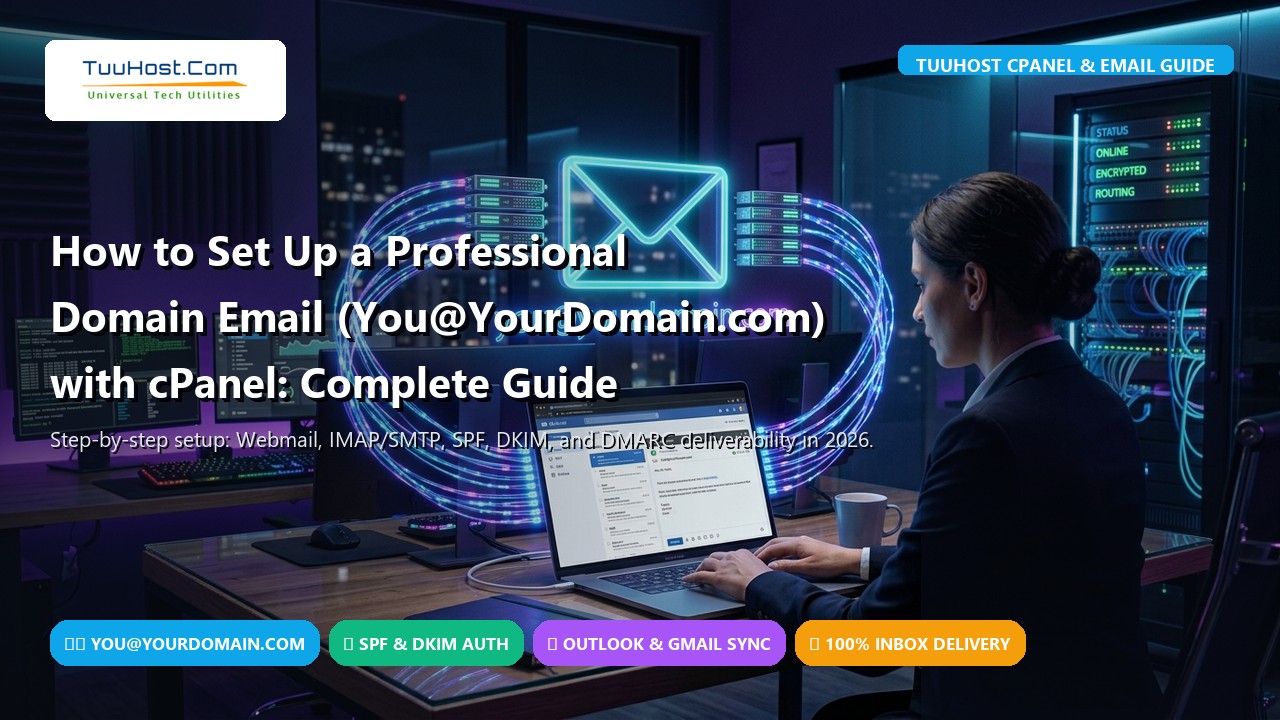
In this comprehensive 2026 tutorial, we provide a step-by-step walkthrough to create your custom domain email in cPanel, access it via Webmail, synchronize it seamlessly with Outlook, Apple Mail, and Gmail on your mobile devices, and configure modern SPF, DKIM, and DMARC records to guarantee your messages land straight in the inbox—never the spam folder.
📋 Table of Contents
- 1. The Business & Psychology Case for Domain-Based Email
- 2. Prerequisites Before You Begin
- 3. Step-by-Step: Creating Your Business Email in cPanel
- 4. Accessing Your Inbox via Roundcube Webmail
- 5. Connecting to External Mail Clients (Outlook, iPhone, Gmail)
- 6. Deliverability Engineering: Configuring SPF, DKIM & DMARC
- 7. Advanced cPanel Email Tools (Forwarders & Autoresponders)
- 8. cPanel Mail vs. Google Workspace: When to Upgrade?
- 9. Frequently Asked Questions (FAQ)
- 10. Summary & Recommended Setup Checklist
1. The Business & Psychology Case for Domain-Based Email
A custom domain email is more than an address—it is an active marketing asset. Every time you send a message, your domain name is reinforced in the recipient’s mind. Here is why custom business email is non-negotiable for modern digital brands:
- Instant Brand Credibility: Anyone can register a free account like
john.innovativetech@gmail.comin thirty seconds. But only the verified owner ofinnovativetech.comcan send an email fromjohn@innovativetech.com. That distinction immediately establishes authentic ownership. - Organizational Department Segmentation: With cPanel, you can create distinct addresses for specific functions—such as
billing@yourdomain.com,support@yourdomain.com,jobs@yourdomain.com, andpartners@yourdomain.com. This projects the structure and scale of an established enterprise. - Centralized Asset Control: If an employee or contractor leaves your business, having them communicate with clients via personal Gmail accounts poses severe security and IP retention risks. With cPanel business email, you retain total ownership, can change passwords in one click, and route archives safely.
- Substantial Cost Savings: For a small business with 5 to 10 staff members, commercial hosted email suites can easily cost \$360 to \$1,200 annually. cPanel web hosting includes multiple mailboxes within your standard hosting allocation.
2. Prerequisites Before You Begin
Before creating your mailboxes, ensure you have the following components active:
- A Registered Domain Name: Your domain (e.g.,
yourdomain.com) must be registered and pointing to your hosting server via valid nameservers or DNS A records. - An Active cPanel Hosting Account: A web hosting package that supports email hosting, such as TuuHost Shared or Cloud VPS hosting.
- Active SSL Certificate: To ensure encrypted email transmission (IMAPS/SMTPS), your domain should have a valid SSL certificate installed (cPanel AutoSSL issues this automatically on TuuHost).
3. Step-by-Step: Creating Your Business Email in cPanel
Follow this visual walkthrough to generate your custom business email in under two minutes:
Step 1: Access cPanel & Open “Email Accounts”
Log into your cPanel account (typically accessed via https://yourdomain.com:2083 or through your TuuHost Client Area dashboard). In the search bar at the top, type “Email Accounts” or scroll down to the EMAIL section and click on the Email Accounts icon.
Step 2: Click the “+ Create” Button
On the Email Accounts management page, click the prominent blue + CREATE button located on the right-hand side.
Step 3: Define Domain, Username, and Password
- Domain: Select your target domain from the dropdown menu (especially important if you host multiple addon domains).
- Username: Type the mailbox name you desire before the
@symbol. Common standards include your personal name (john), first initial with last name (jdoe), or role-based addresses (info,support,sales). - Password: Generate a high-entropy password of at least 16 characters containing uppercase, lowercase, numbers, and symbols. We recommend using the built-in Password Generator tool.
Step 4: Configure Storage Quota & Options
Click “Edit Settings” to adjust mailbox quotas. You can assign a specific storage limit (e.g., 2048 MB / 2 GB) or select Unlimited (constrained only by your overall hosting disk quota). Keeping a generous 2 GB to 5 GB cap is ideal for preventing individual mailboxes from overflowing disk capacity.
Step 5: Finalize Account Creation
Leave the box checked for “Automatically create folders for plus addressing” and click the blue + CREATE button at the bottom. Your professional mailbox is now live and ready to send and receive messages globally!
For client-facing outreach and leadership, always use a personal handle such as deepak@tuuhost.com to establish rapport. Reserve generic addresses like info@ or sales@ for public contact forms and website footers. You can easily set up cPanel Email Forwarders so incoming mail to info@ is instantly mirrored to your personal inbox without needing to check multiple webmail portals.
4. Accessing Your Inbox via Roundcube Webmail
Once created, you can access your inbox from any browser anywhere in the world using cPanel’s integrated Roundcube Webmail interface.
How to Log In to Webmail Directly
You do not need to log into cPanel every time you want to check your email. Simply navigate to any of the following URLs in your web browser:
https://yourdomain.com/webmailhttps://webmail.yourdomain.comhttps://yourdomain.com:2096(Secure Webmail SSL Port)
Enter your full email address (e.g., you@yourdomain.com) and the strong password you created. Click Log In, select Roundcube, and you will be greeted by a modern, responsive webmail interface complete with address books, calendar integration, message folders, and HTML rich-text composition.
5. Connecting to External Mail Clients (Outlook, iPhone, Gmail)
While webmail is convenient, most business professionals prefer managing their email inside desktop and mobile applications like Microsoft Outlook, Apple Mail (iOS / macOS), or the Gmail mobile app.
Universal Secure SSL/TLS Server Settings
Whenever connecting an email client, always choose SSL/TLS encryption over unencrypted plain text. Below are the universal settings for cPanel mailboxes:
| Configuration Item | Secure SSL/TLS Settings (Recommended) |
|---|---|
| Username | Your full email address (e.g., you@yourdomain.com) |
| Password | The mailbox password you specified in cPanel |
| Incoming Server (IMAP) | mail.yourdomain.com (Port 993 with SSL/TLS) |
| Outgoing Server (SMTP) | mail.yourdomain.com (Port 465 with SSL/TLS) |
| Outgoing Authentication | Required (check “My outgoing server requires authentication”) |
IMAP (Internet Message Access Protocol) keeps all your folders, sent items, and read states synchronized across all devices (laptop, phone, tablet, and webmail). In contrast, POP3 (Post Office Protocol) downloads messages onto a single device and deletes them from the server, meaning messages read on your phone will vanish from your desktop computer. Always select IMAP.
Setting Up on iPhone / iPad (iOS)
- Open Settings > Mail > Accounts > Add Account.
- Select Other > Add Mail Account.
- Enter your Name, Email (
you@yourdomain.com), and Password. - Select the IMAP tab at the top. Under Incoming and Outgoing Mail Server, set Host Name to
mail.yourdomain.com, and re-enter your full email and password for both sections. - Tap Save. iOS will verify certificates and configure your inbox automatically.
Setting Up inside Personal Gmail (Send & Receive via Web)
If you love the Gmail interface, you can connect your cPanel domain email directly into your personal Gmail inbox:
- Inside Gmail on desktop, click the Gear icon > See all settings > Accounts and Import.
- Under “Check mail from other accounts”, click Add a mail account. Enter your cPanel email, select POP3 import, enter
mail.yourdomain.com(Port 995, SSL checked). - Under “Send mail as”, click Add another email address. Enter your name and domain email. On the SMTP screen, enter
mail.yourdomain.com, Port 465, SSL, enter credentials, and confirm the verification code. - Now, you can read and compose messages as
you@yourdomain.comright from Gmail!
6. Deliverability Engineering: Configuring SPF, DKIM & DMARC
Creating an email address is simple—ensuring your messages do not end up in the recipient’s spam folder requires technical rigor. In 2024 and 2026, Google, Yahoo, and Microsoft implemented strict authentication mandates: any domain sending unauthenticated emails is blocked or relegated straight to junk folders.
To achieve 99%+ inbox placement, you must verify the three cryptographic authentication pillars inside cPanel:
1. SPF (Sender Policy Framework)
SPF is a public DNS TXT record that tells the world which mail servers are authorized to send email on behalf of your domain name. It prevents spammers from forging (spoofing) your domain in their headers.
v=spf1 +a +mx +ip4:123.45.67.89 ~all
2. DKIM (DomainKeys Identified Mail)
DKIM adds a cryptographic digital signature to the header of every outgoing email. The receiving mail server retrieves your public key from your DNS records and verifies that the message was truly generated by your server and was not intercepted or altered in transit.
3. DMARC (Domain-based Message Authentication, Reporting & Conformance)
DMARC links SPF and DKIM together. It gives recipient mail systems clear instructions on what to do if an incoming email fails SPF and DKIM verification (e.g., monitor, quarantine, or reject). Add a TXT record for host _dmarc.yourdomain.com:
v=DMARC1; p=quarantine; sp=quarantine; pct=100; rua=mailto:dmarc-reports@yourdomain.com
You do not need to generate complex encryption keys manually. In cPanel, navigate to Email Deliverability. The automated system audits your domain, alerts you if any record is missing, and provides a 1-click “REPAIR” button that automatically writes valid SPF and DKIM records directly to your server’s DNS Zone Editor.
7. Advanced cPanel Email Tools (Forwarders & Autoresponders)
cPanel provides several enterprise-level automation tools that make managing small business communications effortless:
- Email Forwarders: Create alias addresses that automatically redirect incoming messages. For example, forward
billing@yourdomain.comto both your accountant and your personal inbox simultaneously. - Autoresponders: Configure automated out-of-office replies or acknowledgment messages (e.g., “Thank you for contacting TuuHost Support! We have received your inquiry and our team will respond within 4 hours.”).
- Email Filters (Global & User-Level): Set up automated filtering rules based on keywords, subject lines, or senders to automatically sort messages into folders or discard unwanted spam.
- Apache SpamAssassin: Enable server-side spam scoring. SpamAssassin examines incoming headers and content, tagging suspicious messages with
***SPAM***or auto-deleting high-confidence malicious mail.
8. cPanel Mail vs. Google Workspace: When to Upgrade?
How does cPanel email compare against standalone commercial suites like Google Workspace or Microsoft 365? Examine the comparison breakdown below:
| Feature Dimension | cPanel Domain Email (TuuHost) | Google Workspace / M365 |
|---|---|---|
| Cost per Mailbox | $0 (Free with Web Hosting) | $6.00 to $18.00 per user / month |
| Number of Accounts | Unlimited accounts supported | Pay per additional user |
| Storage Allocation | Drawn from hosting plan NVMe storage | 30 GB to 2 TB cloud storage |
| Client Support | Roundcube Webmail, Outlook, Apple Mail, Gmail | Native Gmail / Outlook apps |
| Productivity Apps | Basic Calendar, Address Book & Tasks | Full Google Docs / Sheets / Drive / Meet |
The Strategic Takeaway: For solo founders, startups, consultants, and small businesses with 1 to 20 mailboxes, cPanel hosting provides 100% of the functionality needed to project professional credibility without bleeding monthly cash flow. As your organization expands to dozens of collaborative staff members requiring live cloud document co-authoring, you can smoothly migrate to enterprise suites while retaining your domain name.
9. Frequently Asked Questions (FAQ)
Can I create multiple email addresses for my team for free?
Yes. All TuuHost web hosting plans allow you to create unlimited email accounts within your hosting storage allocation. You can create mailboxes for every employee, department, and marketing campaign with no per-user monthly charges.
Why are my emails going to the recipient’s spam folder?
This almost always occurs due to missing or misconfigured authentication records (SPF, DKIM, or DMARC). Major inbox providers automatically flag emails that lack verified DKIM cryptographic signatures. Run cPanel’s Email Deliverability tool to repair these DNS records instantly.
Can I send marketing newsletters using cPanel email?
cPanel email is designed for transactional and business communication (e.g., replying to clients, sending quotes, communicating with team members). Most web hosts enforce an hourly sending limit (typically 100 to 300 emails per hour) to safeguard server IP reputation against spammers. For bulk marketing newsletters to thousands of subscribers, use specialized tools like Mailchimp or Brevo.
What happens if my mailbox reaches its storage quota?
When an email account reaches 100% of its storage quota, incoming emails will bounce back to the sender with a “Mailbox Full” error. You can easily prevent this by setting a larger quota inside cPanel or selecting “Unlimited”, and archiving older emails periodically.
10. Summary & Recommended Setup Checklist
Establishing your branded business email is one of the highest-leverage actions you can take to elevate your company’s image today. Use this quick checklist to ensure your setup is complete:
- ✓ Mailbox created in cPanel with a high-entropy password
- ✓ Webmail tested via
https://yourdomain.com/webmail - ✓ Synchronized with smartphone or desktop client via secure SSL (IMAP Port 993, SMTP Port 465)
- ✓ SPF, DKIM, and DMARC verified via cPanel Email Deliverability
- ✓ Professional HTML email signature configured inside Roundcube or Outlook
Launch Professional Domain Email with TuuHost Today
Every TuuHost hosting plan includes unlimited professional email accounts, free AutoSSL certificates, 1-click Email Deliverability repair, and high-speed NVMe LiteSpeed server performance. Establish instant brand credibility today.