WordPress powers over 43% of all websites on the internet—from personal hobby blogs and corporate portfolios to high-volume WooCommerce storefronts. If you recently purchased web hosting and are wondering how to get your website up and running, you will be pleased to learn that the days of manually downloading ZIP archives, creating MySQL databases, and editing wp-config.php files over FTP are long gone.
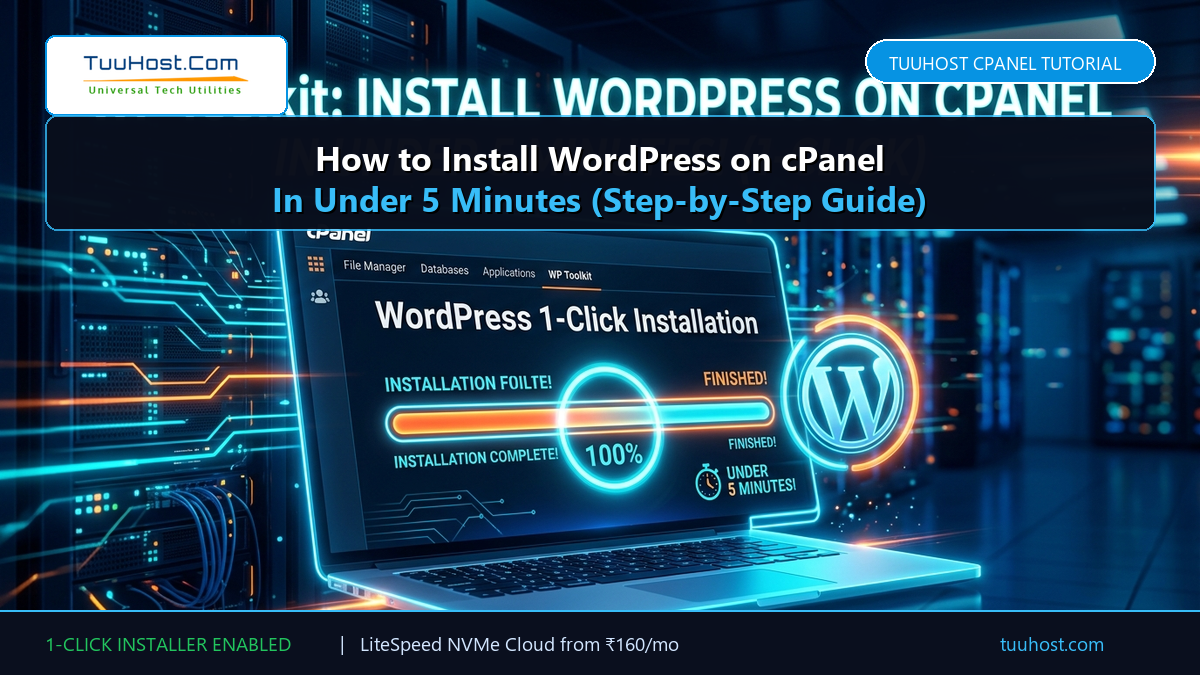
With modern cPanel hosting on TuuHost, you can launch a fully secured, lightning-fast WordPress installation in under five minutes using the automated 1-click Softaculous installer. In this step-by-step tutorial, we will guide you through the entire installation process, security best practices, and post-installation setup.
📋 Table of Contents
- 1. Pre-Installation Checklist: What You Need Before You Start
- 2. Step 1: Log in to Your TuuHost cPanel Dashboard
- 3. Step 2: Open Softaculous / WordPress 1-Click Installer
- 4. Step 3: Configure Your Software Setup (Protocol & Domain)
- 5. Step 4: Customize Site Name and Description
- 6. Step 5: Secure Your Administrator Credentials
- 7. Step 6: Select Language and Pre-Install LiteSpeed Cache
- 8. Step 7: Advanced Options (Custom Database & Auto-Updates)
- 9. Step 8: Click Install and Access Your WordPress Admin
- 10. Essential Post-Installation Setup (Permalinks & SSL)
- 11. Comparison: 1-Click cPanel Install vs Manual FTP/MySQL
- 12. Frequently Asked Questions (FAQ)
- 13. Conclusion & Next Steps
1. Pre-Installation Checklist: What You Need Before You Start
Before launching the installation wizard, verify that you have the following ready:
- Active Domain Name: Ensure your domain name (e.g.
yourdomain.com) is registered and pointed to your TuuHost nameservers. - TuuHost cPanel Login Credentials: Check your welcome email for your cPanel username, password, and direct login URL.
- Active SSL Certificate: TuuHost provides free automated SSL (AutoSSL) certificates. Ensure your domain resolves to your server IP so the padlock icon activates immediately.
2. Step 1: Log in to Your TuuHost cPanel Dashboard
Access your cPanel dashboard by navigating to https://yourdomain.com/cpanel or using the direct server hostname provided in your TuuHost welcome email. Enter your administrator username and password to log in.
3. Step 2: Open Softaculous / WordPress 1-Click Installer
Once inside cPanel, scroll down to the Software section or use the top search bar to type WordPress or Softaculous. Click on the WordPress icon under Softaculous Apps Installer. On the WordPress overview page, click the blue Install Now button to launch the configuration wizard.
4. Step 3: Configure Your Software Setup (Protocol & Domain)
In the Software Setup section, configure your primary domain routing:
- Choose Installation URL: Select
https://orhttps://www.as your protocol. Because TuuHost includes free automated SSL, always choose HTTPS to guarantee end-to-end encryption. - Choose Domain: Select the domain or subdomain where you want WordPress installed.
- In Directory: Crucial Tip: Leave this field completely blank if you want your website to load directly at
https://yourdomain.com. If you typewphere, your site will only load athttps://yourdomain.com/wp!
If you see a warning stating “A trusted SSL certificate was not found”, do not panic! On newly registered domains, AutoSSL completes validation within 15–30 minutes of DNS propagation. You can proceed with installation, and HTTPS will activate automatically.
5. Step 4: Customize Site Name and Description
In the Site Settings section, enter your initial branding details:
- Site Name: Enter your company, brand, or project name (e.g. TuuHost Blog).
- Site Description: A short tagline summarizing your website’s purpose (e.g. High-Speed Web Hosting & Webmaster Guides).
- Enable Multisite (WPMU): Leave this unchecked unless you specifically intend to run a WordPress network of sub-sites.
Note: You can easily update your site name and tagline anytime later inside WordPress under Settings → General.
6. Step 5: Secure Your Administrator Credentials
The Admin Account section is the most critical step for site security:
- Admin Username: Never use “admin” or your domain name! Brute-force bots attack
adminby default. Choose a unique username combining letters and numbers (e.g.tuu_webmaster26). - Admin Password: Use a strong password with a minimum strength score of 85+. We recommend clicking the key icon to generate a cryptographically strong 16+ character password.
- Admin Email: Enter a valid email address that you monitor regularly. Password reset links, core update notices, and security alerts will be sent here.
7. Step 6: Select Language and Pre-Install LiteSpeed Cache
Select your preferred administration language. Under the Select Plugin(s) section, look for LiteSpeed Cache. Check this box! LiteSpeed Cache communicates directly with TuuHost’s LiteSpeed Enterprise web servers to cache dynamic content in RAM, delivering sub-250ms page loads right out of the box.
8. Step 7: Advanced Options (Custom Database & Auto-Updates)
Click on Advanced Options to configure underlying database security:
- Table Prefix: WordPress defaults to
wp_. Changing this to something random (e.g.th26_) prevents SQL injection attacks that target standard table names. - Automated Upgrades: Enable automatic minor core updates and security patches so your site stays fortified against exploits.
- Automated Backups: TuuHost performs daily off-site server backups automatically, but you can also configure Softaculous to create local weekly backups for added peace of mind.
9. Step 8: Click Install and Access Your WordPress Admin
Enter your email address in the “Email installation details to” field at the bottom, then click the blue Install button. The installer will copy all core files, create the database, generate security salts, and configure WordPress in under 30 seconds!
Upon completion, Softaculous will present your celebratory success screen with two vital links:
- Website URL:
https://yourdomain.com(where visitors view your live site). - Administrative URL:
https://yourdomain.com/wp-admin/(your backend management dashboard).
10. Essential Post-Installation Setup (Permalinks & SSL)
Once you log into your new WordPress dashboard, perform these three immediate post-install optimizations:
- Set SEO-Friendly Permalinks: Navigate to Settings → Permalinks and select Post name (
https://yourdomain.com/sample-post/). This is essential for Google search rankings. - Delete Default Sample Content: Remove the default “Hello World” post and sample comment under Posts.
- Verify LiteSpeed Caching: Navigate to the LiteSpeed Cache menu and confirm that Caching is set to Enable.
📊 Comparison: 1-Click cPanel Softaculous vs Manual FTP/MySQL Setup
| Comparison Factor | Manual FTP & MySQL Setup | TuuHost 1-Click cPanel Softaculous |
|---|---|---|
| Setup Time | 25 to 45 minutes | Under 3 minutes |
| Technical Complexity | High (FTP clients, MySQL user privileges) | Zero (Visual form wizard) |
| SSL Activation | Manual certificate binding | Automated AutoSSL |
| Database Security | Manual table prefix edits | Automated random prefixes |
| Automatic Updates | Requires manual cron scripts | Built-in 1-click auto-updater |
❓ Frequently Asked Questions (FAQ)
Q: Can I install multiple WordPress sites on one cPanel account?
A: Yes! On TuuHost Pro and Business plans with multi-domain support, you can use Softaculous to install separate, independent WordPress websites on each of your addon domains or subdomains with a single click.
Q: What should I do if I forget my WordPress admin password?
A: You can reset your password using the “Lost your password?” link on your login screen. Alternatively, log into cPanel, open Softaculous, find your installation under “All Installations”, and click the Edit pencil icon to change your administrator password instantly without email confirmation!
Q: Why does my site say “Not Secure” after installation?
A: This means your SSL certificate is still issuing or your site is loading over HTTP instead of HTTPS. TuuHost automatically provisions a free AutoSSL certificate. Inside WordPress, go to Settings → General and ensure both WordPress Address and Site Address start with https://.
13. Conclusion & Next Steps
Installing WordPress on cPanel is remarkably simple when utilizing modern 1-click tools. By following security best practices—such as avoiding generic usernames, using non-standard table prefixes, and pre-configuring LiteSpeed Cache—you build your website on a solid, hardened foundation. Your website is now ready for custom themes, high-converting content, and organic search engine growth.